A prop firm challenge indicator for a more readable MT4 chart
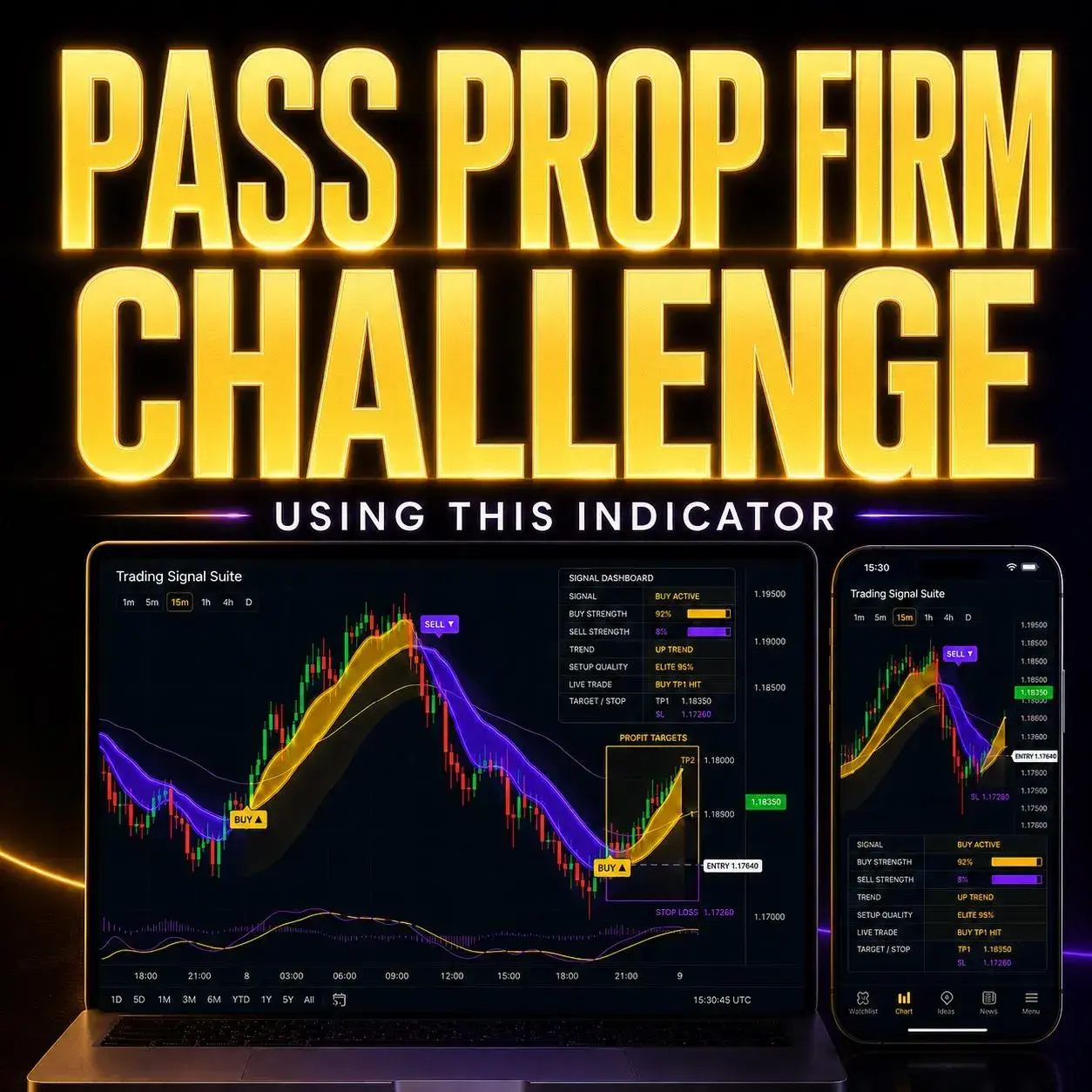
Trading Signal Suite brings the main parts of a potential setup together on MetaTrader 4. You can review the Buy/Sell direction alongside the trend, strength, setup quality and the chart’s entry, target and stop references. That gives the observation more context than a signal label viewed alone.
If you are comparing an MT4 prop firm challenge indicator, start with the chart work you want it to simplify. Can you find the relevant information quickly? Can you explain what the software is showing? Can you save a useful record before the market moves on?
This guide takes those questions through Trading Signal Suite for MT4. You will see how the display fits together, why the current quote matters, how to install the desktop file and what to check when using available alerts during evaluation preparation.
| Your chart question | Relevant feature | What to record |
|---|---|---|
| Which direction is marked? | Buy and Sell signal labels. | The signal, symbol and observation time. |
| What context accompanies it? | Trend and Buy/Sell strength readings. | The readings present at that time. |
| How does the model classify it? | The setup-quality field. | The grade as software output, not a measured win rate. |
| Where are the guide areas? | Entry, TP1, TP2 and Stop Loss references. | The boundaries and the current quote. |
| What does the display show later? | The live chart setup-status field. | The later chart state, apart from any actual order. |
On a phone, swipe across the table. These are chart functions; your account limits and any real execution remain separate parts of the review.
See the complete layout before choosing
The strongest reason to inspect this product is the combined view of the setup. Use the demo to decide whether that layout would reduce the chart searching and manual preparation you currently repeat.
Watch the Trading Signal Suite demonstration
Look at the directional labels first, then follow the dashboard and the highlighted reference areas. The shared demonstration shows the product’s feature layout; the MT4 sections below explain the desktop installation and supported notification checks.
Read the setup from the signal through to the price areas
A useful chart check ends with something you can describe. For example: the software is marking a Sell setup, its trend field is bearish, these are the strength and quality readings, and these are the entry and target/stop references. That description is more complete than remembering only that an arrow appeared.

Identify the direction and the relevant candle or time before looking at a later outcome.
Note how trend, strength and setup quality describe the model’s view of the chart.
Locate the entry, stop and target references, then compare them with today’s available quote.
A strong display still needs interpretation
A prominent strength value or quality grade can make a setup easy to notice. It summarises the software’s rules; it is not an independently established probability that the next move or evaluation outcome will be favourable.
An orderly chart makes the record easier to follow
Keeping the same fields visible can help when reviewing a series of observations. Save unfavourable and uneventful examples too, so the record is more informative than a collection of the clearest historical moves.
The signal and its context fields belong to one software model. Treat them as connected information about that model rather than counting every matching label as a separate, independently tested reason to trade.
The distinction also applies to live setup status. A chart can mark progress through its reference areas without your account holding a position. When you compare the display with execution, use the relevant order and account records for the execution side.
Entry, Take Profit and Stop Loss: keep the current price in the picture
Trading Signal Suite’s Entry / TP / SL areas make the outline of the setup visible. The display includes TP1 and TP2 planning zones and a Stop Loss area. Those references help you see where the software places the proposed boundaries without drawing the whole layout from scratch.

The original reference prices are only one part of the picture. When you inspect an alert later, the market may be somewhere else. Keeping both the original entry and the current quote in the record prevents the same old label from being treated as the same opportunity at a new price.
Why a later quote changes the relationship
In this hypothetical Buy example, the original entry-to-stop distance is 4 units and the distance to the target is 8: a nominal 2R layout before costs. At a later quote of 504, the same fixed stop is 8 units away and that target is only 4 units away: 0.5R. The figures illustrate a changed relationship, not an actual Trading Signal Suite setup, an instruction to enter later or a forecast.
For an MT4 account, cash exposure also depends on the instrument’s contract details, tick value, chosen volume and execution costs. A visible stop reference does not calculate all of those inputs for you or guarantee a fill at that level.
Keep the first chart and your later observation together
Save the original boundaries and time, then add the quote you saw when you returned. If a target was already reached before you looked, record that sequence rather than counting the historical movement as your own result.
The portrait image is a shared feature illustration. To run the custom MT4 chart display, use the desktop indicator; a mobile notification is a different function.

A simple review routine for MT4 evaluation preparation
The chart review becomes easier to repeat when each observation has the same small set of notes. Keep the model’s reading, your account check and the eventual outcome distinguishable. You can then revisit a setup without having to reconstruct the decision from a screenshot alone.
What the model showed
Save the full symbol, chart period, inputs, signal and reference areas, with the time you observed them.
This is the original software observation.
What your review concluded
Note whether your own method and the account’s current requirements permitted further consideration, or why you stopped the review.
A chart label does not supply this account decision.
What actually followed
Keep later chart changes and any actual fills separate. Include the setups you skipped as well as those that led to an order.
The account statement is the record of execution.
The later chart uses a different configuration
You save a setup, change an input during a later session, then revisit the same section of chart. Keep the original settings with the first image. A visual difference after reconfiguration should not be logged as though it came from an unchanged setup.
Two clear charts still belong to one account
Two instruments show readable setups at the same time. The indicator describes each chart; it does not tell you the combined exposure created by positions across the account. Record the account check separately instead of assuming that two individual stop areas complete it.
Use your programme’s current rules for loss calculations, permitted activity and any relevant restrictions. FTMO’s strategy guidance is one example of a firm making strategy use subject to specific conditions. It is not an approval of Trading Signal Suite, and one firm’s wording does not establish every other firm’s policy.
Add Trading Signal Suite to desktop MetaTrader 4
The MT4 version uses an .ex4 file in the desktop platform. Start with the MT4 download supplied through your access instructions and the desktop app you intend to use. Phone apps and the web terminal cannot install this custom indicator file.
- Open your desktop MT4 application.
Make sure it is installed and logged in. If several copies are available, work from the one where you want the indicator to appear.
- Use File → Open Data Folder.
Open MQL4, then Indicators. Copy your supplied .ex4 file into that Indicators folder. Use the folder opened by this application rather than guessing a location elsewhere.
- Return to the Navigator indicator list.
Refresh the list, or close and reopen the same MT4 app if the indicator has not appeared. Drag Trading Signal Suite onto the intended chart.
- Check the Inputs and the display.
Review the settings supplied with your version. To revisit them, open the chart’s Indicators List, select Trading Signal Suite and use Edit to open its properties.
The MetaTrader Trading Signal Suite user guide provides the linked product instructions. For the platform steps, MetaQuotes documents the Navigator and executable indicator files and attaching a custom indicator.

If the dashboard is missing, check the file, data folder and chart attachment first. For version-specific settings or loading errors, use the current product instructions and contact support with the relevant details.
MT4 alerts and phone notifications: what to configure
Keep desktop MT4 open and connected for the indicator to calculate new signals. Review the alert options included in the installed version. A chart image advertising notifications does not tell you which delivery controls are enabled in your own installation.
- Find the available indicator alert controls.
Review the Inputs and current product instructions. Enable the supported event and delivery method you intend to use; do not assume every notification type is included.
- Set up supported mobile push in the terminal.
If the indicator supports push, go to Tools → Options → Notifications. Enable Push notifications and enter the MetaQuotes ID shown in your mobile app.
- Send a platform test message.
The Test button checks delivery to the phone. A successful test verifies that route; the indicator must still support and send its own signal notifications.
- Review the operating conditions.
Leave the relevant chart and desktop terminal running. After a restart, configuration change or connection interruption, confirm that the indicator and required alert options are active again.

The official MT4 notification guide explains MetaQuotes ID configuration and testing. Platform trade-operation messages and an indicator’s signal messages are distinct events; configuring one does not establish that every other event will be sent.
A phone can receive supported push messages without running the .ex4 display. The desktop remains the source of this custom indicator’s calculations, and a notification does not place an account order.
Is Trading Signal Suite the right type of MT4 chart tool for you?
The product is worth a closer look if your current setup feels fragmented: a signal in one place, context somewhere else, and reference areas that take time to reconstruct. Trading Signal Suite’s appeal is giving that review a more consistent visual starting point.
For a trader who wants the signal’s surroundings visible
Compare the dashboard and highlighted areas with your own charts. If you regularly ask where the stop reference sits or what context accompanied an alert, inspect how the product arranges those fields.
For a trader who reviews setups on desktop MT4
The custom file is used in the desktop terminal. Consider that requirement alongside the available alert methods and your preferred way of saving and revisiting observations.

Trading Signal Suite is presented for use across forex, Gold, indices, crypto and other supported markets and chart periods. Check the actual instrument and data available in your MT4 terminal. Broad coverage describes where the tool can be applied; it does not establish equal performance across those markets.
Account-level features deserve their own specification. If your requirement is automatic lot sizing, a loss-limit lockout or monitoring total account risk, verify that function separately. The signal chart described here does not replace it.
To compare a wider range of chart functions, read our MT4 prop firm indicator guide. You can also explore the MT4 scalping and day-trading comparison or browse the full MetaTrader 4 indicator range.
Your MT4 Trading Signal Suite review checklist
Use the eight checks below when preparing the chart and notification workflow. They turn the article into a repeatable review without asking the indicator to make account decisions for you. Reset the list when you want to begin a new check.
Eight checks for a complete MT4 setup review
This records the preparation completed. It is not a performance test, a certification of a method or a promise that an evaluation will be passed.
Trading Signal Suite MT4 FAQs
What does this MT4 prop firm challenge indicator display?
Trading Signal Suite combines Buy/Sell labels, market trend, Buy/Sell strength, setup quality, Entry references, TP1 and TP2 planning zones, Stop Loss areas and chart setup status. The aim is to make those parts of the potential setup easier to inspect together in desktop MetaTrader 4.
Can Trading Signal Suite guarantee that I pass a challenge?
No. The product supplies chart information for your own review. Evaluation outcomes also involve your method, execution, account decisions and the programme’s specific requirements. Neither the promotional image nor a strong-looking setup establishes a pass rate or guarantees a result.
How do I install the MT4 indicator file?
Use the supplied MT4 .ex4 file. In the intended desktop app, open File → Open Data Folder, copy it into MQL4 → Indicators, then refresh Navigator or restart that app. Attach the indicator to the chart and review its properties using the product instructions.
What should I check if the MT4 dashboard does not appear?
Confirm the file is the correct .ex4 version, that it is in the data folder opened by the terminal you are using, and that it is attached to the intended chart. Refresh or restart that app if needed. If it still does not load, send support the relevant error information and version details.
Can I install Trading Signal Suite in MT4 mobile or the web terminal?
The supplied custom indicator is installed in desktop MT4. Its .ex4 file is not installed into the phone app or web terminal. Supported push notifications may be delivered to a mobile device after setup, but that does not add the custom dashboard to a mobile chart.
Will I receive new indicator alerts if desktop MT4 is closed?
The indicator needs a running, connected desktop terminal to calculate new chart signals and send its supported alerts. Verify the installed version’s alert options and keep the relevant chart active. A mobile device receiving messages is separate from the desktop process that generates the custom signal.
Is the strength or setup-quality reading a verified win rate?
The displayed values are outputs of the product’s model. This article does not establish them as measured win probabilities, independently audited returns or a chance of passing an evaluation. Record the readings as part of the chart observation and judge the wider process from complete records.
Does the stop area prevent a daily-loss or drawdown breach?
A stop reference on the chart does not monitor or enforce the firm’s account rules. Actual loss depends on positions, execution and the relevant account calculation. Check applicable limits and aggregate exposure separately; the indicator’s guide areas are not an account-level lockout.
Can signals or guide areas look different when I revisit a chart?
Assess the installed version and configuration as the chart develops and after reloading it. Save the first observation and any input changes so you can compare like with like. This guide makes no general non-repainting claim, and a historical illustration alone does not establish when each feature became visible.
Where can I get the MT4 version and setup information?
Open the MT4 Trading Signal Suite product page for current access details. Use the MT4 download provided through your purchase instructions, then review the desktop installation, available settings and alert support. Contact VIP Algos if you need help confirming the correct file or access route.
Give your next MT4 setup review a clearer structure
See the signal, read the accompanying context and inspect the price areas in one place. If that is the chart work you want to make easier, take a closer look at Trading Signal Suite for MetaTrader 4. Review the product features and confirm the desktop requirements before choosing access.
Return to the price-distance example or review the MT4 installation steps.
Product and platform references for this guide
The Trading Signal Suite product page supplies the shared feature media and access link. The MetaTrader product user guide is provided for product instructions. MetaQuotes documents indicator files in Navigator, attaching and configuring custom indicators, and MT4 push notifications. The link to FTMO’s strategy conditions illustrates checking the firm’s own requirements, without implying product endorsement.

VIP Algos creates chart indicators and educational materials. This guide explains our Trading Signal Suite feature layout and a MetaTrader 4 setup-review workflow. For help with the product, file or installation instructions, contact the VIP Algos team.