MT4 scalping and day-trading indicators: a practical shortlist
A useful MT4 indicator should make a recurring chart task easier to complete. You might want scalp labels beside their price levels, breakout thresholds already marked, or a dashboard that helps narrow your watchlist. This guide compares those jobs first, so the product choice follows the way you analyse a session.
The five tools below are from the VIP Algos collection. “Best” refers to their fit for the stated task, rather than an independent performance ranking of all MT4 indicators. Shared product illustrations and videos explain the features; they are not all MT4 terminal captures. The phone images do not show custom indicators installed inside the MT4 mobile app.
| Indicator | Useful for | Key view |
|---|---|---|
| Scalper Pro X | Short-term signal and level checks | Scalp labels, trend / strength and Entry / TP / SL areas. |
| Trading Breakout Levels | Watching a defined breakout threshold | Buy Above / Sell Below levels with two target areas. |
| AI Trading Signal Scanner | Prioritising a wider watchlist | Selected markets, four timeframe views and setup ranking. |
| AI Supply & Demand Zones | Reviewing the areas around current price | Supply / Demand Zones with touch status and strength. |
| Trading Signal Suite | Keeping setup information together | Buy / Sell signals, trend, quality, status and price zones. |
Swipe the comparison sideways on a phone. Use the tool names to jump to the relevant example, video and MT4 product link.
Choose the task that takes the most effort
For one fast chart, compare the scalp-alert and breakout displays. For several markets, look at the scanner. For price location, examine the zone map. Start with one clear purpose, then compare any extra function with the built-in EMA, RSI and ATR measurements you already know.
Scalper Pro X: simplify a lower-timeframe MT4 chart
Role: Scalp labels and setup-level checksIf you mainly watch one market at a time, Scalper Pro X brings the scalp signal and its surrounding levels into the same view. Buy / Sell alerts, trend direction, strength readings and Entry / Take Profit / Stop Loss zones give a short-term MT4 chart a more organised starting point, without requiring you to mark each setup from scratch.
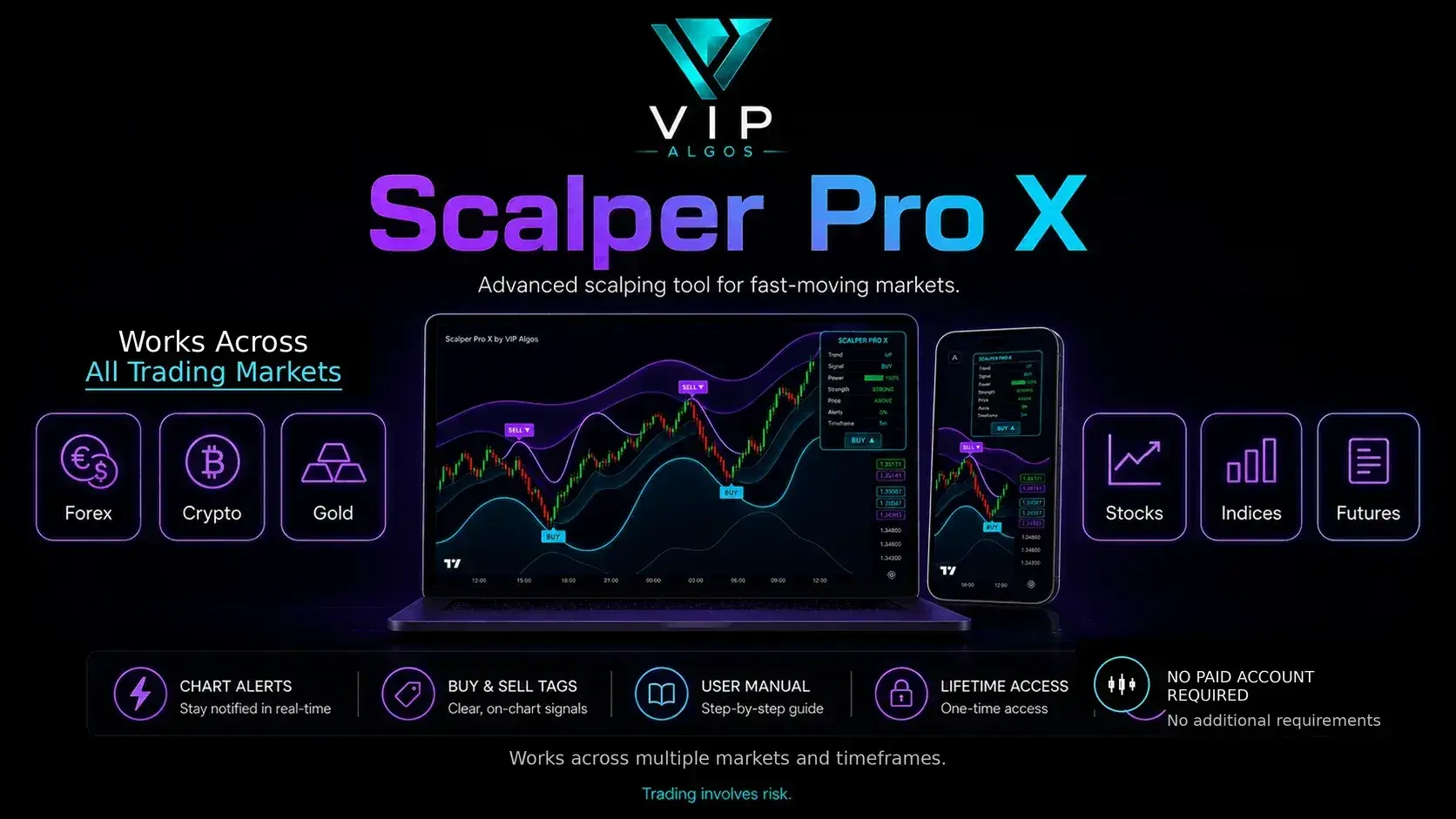
See the references when the label appears
A label becomes more useful when the entry, target and stop references are visible beside it. You can inspect the model’s direction and strength while checking where the displayed setup sits on the chart. This is the tool to compare when your priority is a focused scalp-alert workflow.
Put the spread beside the setup distance
On a small move, the difference between bid and ask can be significant relative to the target spacing. Review the live quote and costs as well as the signal power. The indicator’s plotted levels describe a setup; they do not establish the price your broker will fill.
Illustrative chart check: A Sell label appears during a narrow range. The signal panel shows its model reading, while the nearby target and stop references reveal the small distances involved. You can review that spacing alongside the current spread before interpreting the event.
Watch Scalper Pro X in action
Follow the scalp labels, strength information and price zones in the feature video, then check the MetaTrader 4 edition.
VIP Algos product feature demo · MT4 setup details on the linked page
See a closer Scalper Pro X preview
The closer illustration makes the labels and panel easier to inspect. Use it to understand the display, then follow the supplied desktop MT4 installation and alert instructions.

Trading Breakout Levels: map the thresholds around price
Role: Buy Above / Sell Below reference levelsFor a breakout-focused session, Trading Breakout Levels puts Buy Above and Sell Below references directly on the MT4 chart. Entry areas, TP1 / TP2 target zones and a Stop Loss reference keep the surrounding scenario visible. Alerts add a way to return to the chart when the tool identifies a relevant event.

Make the trigger area easy to recognise
A clearly marked threshold gives repeated chart checks a consistent reference. You can see whether price is between the levels, approaching one or trading beyond it. The appeal is having that structure on the chart without manually rebuilding the same set of lines.
Read the current candle and alert rule
Different alert rules can describe a developing move or a confirmed event. Check the MT4 product instructions and current candle before interpreting the label. Price may cross a threshold and reverse, and the displayed target areas remain possible reference points rather than required destinations.
Illustrative chart check: Price remains between Buy Above and Sell Below while candles move back and forth. Both thresholds stay visible, so you can recognise that price has not yet moved beyond either reference instead of reading every small candle as a new breakout.
Watch Trading Breakout Levels in action
See the breakout thresholds, chart alerts and TP1 / TP2 / Stop Loss references in the product demonstration.
VIP Algos product feature demo · MT4 setup details on the linked page
See a closer Trading Breakout Levels preview
Enlarge this example to see the relationship between the breakout level, target areas and stop reference. During an MT4 review, compare those references with the latest price rather than relying on the first crossing alone.

AI Trading Signal Scanner: decide which chart to inspect next
Role: Market and timeframe comparisonsWhen several markets compete for your attention, AI Trading Signal Scanner organises selected symbols and four timeframe views in one MT4 dashboard. Buy / Sell / Wait states, directional and strength readings, a Final Signal and setup ranking give you a place to begin the session before examining an individual chart in detail.

Compare the timeframe cells with the summary
The overall signal is a summary of the tool’s inputs. Looking at the separate timeframe states helps you see whether the shorter and longer intervals agree or conflict. That is useful when a fast chart appears active but the wider reading tells a different story.
Give the scanner the data it needs
A multi-market MT4 dashboard depends on the broker’s symbols and source-period history. Check symbol names, make the required markets available and allow the relevant charts to load. Review the supplied MT4 timing and alert settings; a ranking does not measure the probability that a trade will succeed.
Illustrative chart check: H1 and H4 show Buy states while the shorter timeframe cells show Wait. The dashboard makes that mixed picture visible. You can open the chart with a specific question to investigate instead of assuming all periods are giving the same signal.
Watch AI Trading Signal Scanner in action
Watch the timeframe cells, market rows, ranking and Final Signal together to understand the scanner’s role.
VIP Algos product feature demo · MT4 setup details on the linked page
See a closer AI Trading Signal Scanner preview
The portrait example offers a closer look at the scanner layout. It illustrates the fields to inspect; the custom MT4 dashboard runs in the desktop terminal using the available broker data.

AI Supply & Demand Zones: add location to the signal review
Role: Supply / demand location and zone historyA signal answers one question about the chart; its location raises another. AI Supply & Demand Zones maps confirmed reaction areas and distinguishes UNTOUCHED zones from TOUCHED zones. The MT4 tool’s strength and nearest-zone information help you inspect the structure around a possible scalp or intraday setup.

Use the touch history to compare zones
A fresh area and one that price has revisited several times are different observations. The status labels identify that history, while the strength reading reflects the model’s assessment. Genuine retests can reduce the displayed strength, helping you see how a zone has changed after formation.
Watch what price does at the boundary
A supply or demand area gives you a location to examine. Price may react within it, pause at it or move through it. Read the available zone-entry and break alerts with the active zone status. The coloured area alone does not guarantee support, resistance or a reversal.
Illustrative chart check: An untouched Demand Zone receives its first return visit. Its status changes after the touch is recognised, and the updated reading gives you a different picture from the fresh zone shown earlier. Track that change alongside the actual candles.
Watch AI Supply & Demand Zones in action
See how the zone map, touch labels and dashboard readings help distinguish fresh areas from tested ones.
VIP Algos product feature demo · MT4 setup details on the linked page
See a closer AI Supply & Demand Zones preview
Open the close-up to inspect the zone labels and dashboard. Check the MT4 documentation for when each event is recognised and how the available zone alerts are triggered.

Trading Signal Suite: keep the intraday setup in one panel
Role: Direction, quality, status and price referencesIf your chart review involves checking several fields together, Trading Signal Suite combines Buy / Sell signals, trend direction, signal strength and setup quality with Entry / TP1 / TP2 / Stop Loss zones. Its setup-status view makes it the broader MT4 dashboard option in this shortlist for following the information around a labelled scenario.

Read the fields as parts of the same setup
Trend gives a directional reading, strength and quality describe the model’s conditions, and the price zones provide reference areas. Viewing those parts together can reduce repeated checks across separate panels. The dashboard supports analysis; it does not manage a position or execute the setup for you.
Check whether the displayed scenario is current
Return to the current quote and status whenever you revisit a chart. A previously attractive label may now sit far from its original entry, or price may have moved through a reference area. Quality is a calculated setup reading, rather than a verified success rate.
Illustrative chart check: A setup remains on the chart when you return later in the session. Instead of reading its original direction alone, you inspect the live status and compare price with Entry, TP1, TP2 and the stop reference to understand how the situation has developed.
Watch Trading Signal Suite in action
Preview the combined signal, trend, quality, status and price-zone layout in the feature demonstration.
VIP Algos product feature demo · MT4 setup details on the linked page
See a closer Trading Signal Suite preview
Enlarge the product example to read the dashboard alongside the chart. Use the MT4 setup instructions for installation, input settings and the supported alert delivery options.

Which MT4 indicator would improve your chart routine?
Use the question that sounds most like your session. The links below return to the relevant example so you can inspect the display and watch the demonstration before opening the MT4 product page.
Scalper Pro X or Trading Signal Suite?
Scalper Pro X centres on the fast-chart scalp-alert workflow, with strength readings and setup zones. Trading Signal Suite brings trend, strength, quality, status and reference levels into a broader combined panel. Compare how the two displays present a setup, then choose the one you would find easier to read during your MT4 session.
There is some overlap in signal and level functions. You do not need both to begin. A scanner or zone map may perform a different job, but any additional tool should add information you can explain. Agreement between indicators that reuse similar inputs is not necessarily independent confirmation.
EMA, RSI and ATR: compare the built-in MT4 options
A simple MT4 workspace can already show direction, momentum and volatility through familiar built-in tools. Understanding those measurements gives you a better basis for evaluating an added dashboard, automated levels or a market scanner. These are three useful starting points.
EMA · direction
In MetaTrader 4’s Moving Average settings, the Exponential method gives recent observations greater weight in a smoothed price reference.
EMA describes price direction with a delay and can whipsaw when movement becomes sideways. MetaTrader 4 Moving Average guide ↗
RSI · momentum
Relative Strength Index summarises recent upward and downward price changes on a scale between 0 and 100.
RSI can stay near an extreme while a trend continues; the reading is not a compulsory reversal. MetaTrader 4 RSI guide ↗
ATR · volatility
Average True Range provides a measure of recent price-range volatility, helping you compare quieter and more active conditions.
ATR describes the size of movement rather than which direction price will move next. MetaTrader 4 ATR guide ↗
When comparing a premium MT4 indicator, ask what it contributes beyond those measurements. Automatically mapped zones, a combined setup view or fewer manual watchlist checks can be a useful reason to choose software. More labels on a chart do not automatically make it more informative.
Set up the terminal before evaluating the signals
Good chart organisation starts before the first alert. Check which broker terminal is running, which instrument it provides and what history is available. This matters particularly when your MT4 indicator reads other markets or timeframes: the chart on screen may represent only part of the data it needs.
Open File → Open Data Folder inside the MT4 terminal you actually use. This helps avoid adding the file to another broker installation.
Confirm the broker’s exact market names. Make required symbols available in Market Watch and allow the relevant charts and periods to load.
Add the MT4 indicator, inspect its Inputs and test the supported notification settings. Note when a new event is confirmed and displayed.

Choose a pace you can follow on standard MT4 periods
M1, M5 and M15 are familiar short chart periods in MT4; H1 and H4 provide wider views. A scalping display and a day-trading dashboard may use them differently. Check the indicator’s supported analysis periods, then keep them fixed while you observe fresh bars. Faster updates also give you more events to review and can make trading costs more significant relative to a small move.
Keep the chart readable when several panels are open
Use the available input settings to position the dashboard where it does not obscure the candles you need to inspect. Keep track of which tool supplies each signal or level. If two panels repeat the same job, compare what you actually use before adding another display. A consistent workspace makes later demo observations easier to compare.
For a gold-focused comparison, see our MT4 gold and XAUUSD indicator guide. For other signal, forecast and zone tools, browse the MetaTrader 4 indicator collection.
Your MT4 scalping and day-trading setup checklist
Run these checks on a broker demo account before making a new indicator part of your session. Keep the market, periods and settings consistent while watching fresh data. Record unclear or failed examples as carefully as the examples that look easy to interpret.
Eight checks for an organised MT4 review
This checklist organises observations. Completing it does not establish that a trade is suitable or likely to succeed.
MT4 scalping and day-trading indicator FAQs
What are the best MT4 scalping indicators?
For this VIP Algos comparison, Scalper Pro X is the focused scalp-alert option, and Trading Breakout Levels provides a threshold-based view. Supply & Demand Zones adds price-location context, while the scanner and Signal Suite organise wider chart information. The most useful choice is the one that fits a clear task in your routine; this guide does not rank products by independently tested trading returns.
Which MT4 day trading indicator should I compare first?
Start with Trading Signal Suite if you want signals, quality, status and reference levels on one chart. If you first need to narrow several markets, compare AI Trading Signal Scanner. Watch their demonstrations to see whether your main need is a chart-level setup view or a watchlist overview.
Can the same MT4 tools be used for scalping and day trading?
The selected products cover different chart-analysis roles. Some focus on lower-timeframe scalp labels, while others organise levels, zones or market comparisons. Scalping and a wider intraday review can place different demands on timing and costs. Use the product’s supported periods and settings, then observe its behaviour at the pace you intend to review.
What is the best timeframe for MT4 scalping indicators?
There is no single best period across markets and tools. M1, M5 and M15 provide different short-term views; a dashboard may also read higher periods such as H1 or H4. Check the source timeframe as well as the visible chart. On small moves, compare spread and possible slippage with the target spacing rather than choosing a period solely for more signals.
Will the MT4 indicators work with my broker’s forex, gold or index symbols?
Check the chosen product’s supported markets and your broker’s symbol names, contract details and price history. Names may include prefixes or suffixes, especially for gold and indices. A scanner can only analyse the markets and periods for which its required data is available. Follow the MT4 symbol-input instructions where the indicator provides them.
Do I need desktop MT4, or can I install these on a phone?
Use desktop MetaTrader 4 for custom indicators. The MT4 mobile app and web terminal do not load custom .ex4 chart tools. Where the indicator supports push alerts, enable that input and add your mobile MetaQuotes ID in desktop MT4 under Tools → Options → Notifications. Test delivery and keep the desktop terminal running and connected. Phone images in this guide are product illustrations.
How can I check whether an MT4 indicator changes earlier signals?
Read the supplied MT4 documentation and compare fresh observations with the same bars after they close. Open-candle readings can change as prices develop; that does not by itself tell you whether closed-bar plots are revised. Record the signal time, analysis period and input settings. Screenshots and selected historical examples alone cannot establish repainting behaviour.
How do I install the MT4 indicator and adjust its dashboard?
Select MT4 Download in the supplied access area to obtain the .ex4 file. In desktop MT4, choose File → Open Data Folder, copy it into MQL4 → Indicators, then right-click Indicators in Navigator and select Refresh. Add the indicator to your chart and follow the included Windows or Mac guidance for your installation. To change settings, choose Charts → Indicators List, select the VIP Algos indicator, click Edit and open Inputs. Where provided, Dashboard Position can move the panel to locations such as Top Left or Bottom Right. Use the MT4 .ex4 version; .ex5 files are not compatible with MT4.
Find the MT4 display that fits your next session
Want scalp labels and setup levels on a fast chart? Explore Scalper Pro X. Want an overview of the markets you follow? Explore AI Trading Signal Scanner. Use the relevant demo to compare the display, then open the MT4 product page for features, setup and access details.
Return to the five-tool comparison or browse all VIP Algos MT4 indicators.
Sources & product information
The built-in indicator explanations use MetaTrader 4’s official documentation. The MT4 product links below correspond to the five tools discussed here; shared feature illustrations and demonstrations help explain their analysis roles:
- Scalper Pro X: features, demo and access details
- Trading Breakout Levels: features, demo and access details
- AI Trading Signal Scanner: features, demo and access details
- AI Supply & Demand Zones: features, demo and access details
- Trading Signal Suite: features, demo and access details

VIP Algos develops trading indicators and educational chart resources. This branded guide compares our own MT4 tools by the work they do on a chart or watchlist. Contact the team for product, access and setup questions.