What should a prop firm challenge indicator help you see?
A useful prop firm challenge indicator makes a potential setup easier to understand before you decide what to do with it. The direction, the surrounding trend and the proposed entry, stop and target areas should be easy to find. Your challenge rules and account exposure then need their own check.
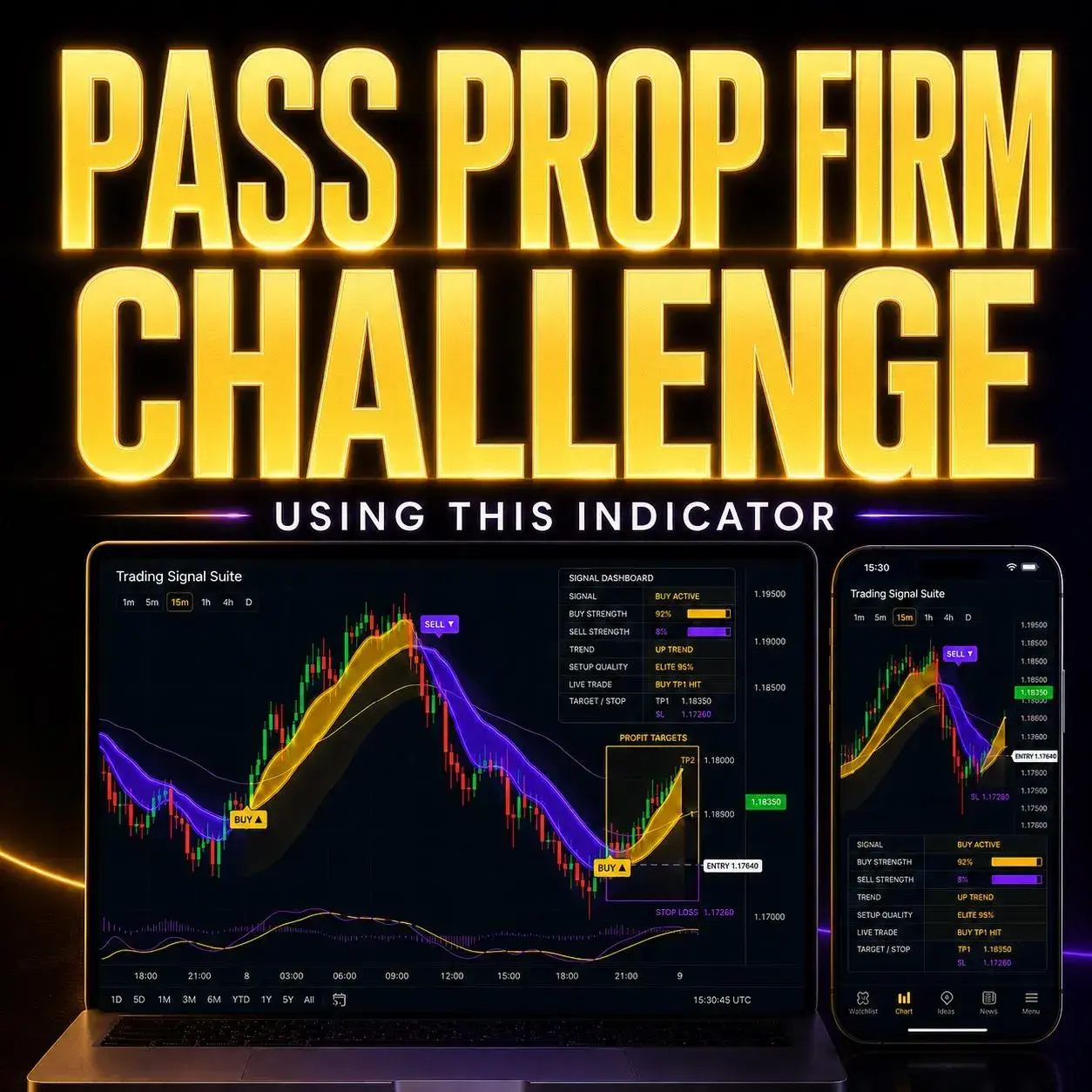
That is the role of Trading Signal Suite. It combines Buy/Sell signals, market trend, signal strength, setup quality, Entry areas, TP1 / TP2 zones, Stop Loss zones and a live setup-status display on TradingView. Instead of piecing those references together across a busy chart, you can inspect them in one organised view.
For a trader preparing for a funded account evaluation, the appeal is practical: less time hunting for the information around a signal, and a clearer record of what the indicator showed. The value comes from the chart organisation you can inspect—not from assuming that a label will predict the next candle.
| Chart feature | What it brings into view | Check separately |
|---|---|---|
| Buy / Sell signals | The direction of a software-generated setup. | Its timing and the current market quote. |
| Trend & strength | Directional context and the model’s strength reading. | Whether the setup fits the method you have tested. |
| Setup quality | A software assessment of the displayed setup. | It is not a verified win probability. |
| Entry, TP1 / TP2 & SL | The chart’s entry reference, target areas and stop area. | Position size, execution costs and account limits. |
| Status & alerts | A view of the chart setup and supported notifications. | Actual orders, fills and your firm’s account records. |
Swipe across the table on mobile. The indicator’s chart display and your trading account serve different purposes; the dashboard does not enforce challenge rules.
The question to ask before buying
Would having the signal, trend, strength and target/stop areas in one place make your existing chart review easier to follow? Watch the demonstration with that question in mind, then compare the display with the preparation you repeat today.
Watch Trading Signal Suite in action
Follow the Buy/Sell labels, trend display, dashboard and highlighted target/stop areas together. The demo lets you see how the information fits on the chart before exploring the workflow below.
A Buy/Sell alert is the start of the review
A single arrow can catch your attention. The useful question is what surrounds it. Trading Signal Suite places the signal alongside trend direction, Buy/Sell strength and setup quality, making it easier to describe why the displayed setup caught your eye.

Check the displayed Buy or Sell direction and the chart time associated with the setup.
Review the trend, strength and setup-quality fields before interpreting the label on its own.
Find Entry, TP1, TP2 and SL, then compare them with the quote available now.
The dashboard gives the review a repeatable order. You can save the chart with the same fields visible each time, then return to that original observation when you review what happened. That is more informative than collecting only screenshots of setups that later looked attractive.
Use trend as context
The trend field describes the indicator’s directional reading. A bullish or bearish display is useful information to record, particularly when comparing it with the signal you are reviewing. It does not establish how long that direction will last.
Read scores as software output
Strength and setup quality summarise the product’s calculations. A percentage or a strong-looking grade is not an independently verified chance of profit, a pass probability or permission to increase exposure.
The fields are also outputs from one indicator. Agreement between its signal, trend and strength may make the display easier to interpret, but it should not be counted as three independently proven sources of trading evidence.
Entry, Take Profit and Stop Loss zones: what the layout clarifies
A TradingView Buy/Sell indicator with Take Profit and Stop Loss zones gives the setup a visible shape. Trading Signal Suite marks an entry reference, TP1 and TP2 areas, and an SL area, so you can inspect the distance between them without searching around the chart.

For challenge preparation, this is where a visual reference becomes a question you can check: how far is the stop area from the entry reference, and how much account exposure would a proposed position create? The indicator supplies the chart areas. You still need your own account information, contract specification, position-size calculation and challenge rules.
How to read the distances without confusing them with results
If a hypothetical Buy setup used these reference prices, the entry-to-stop distance would be 1 unit. The first target would be 1 unit above entry and the second 2 units above it: nominal 1R and 2R distances before costs. These invented numbers explain the layout; they are not a Trading Signal Suite preset, a market forecast or a trade recommendation.
Those distances change if the entry actually available differs from the reference. A late notification, spread, fees and slippage can change the relationship. Reviewing the current quote against the original areas keeps an old chart label from being mistaken for a fresh opportunity at the same price.
Save the setup before judging the outcome
Record the exact symbol, chart period, signal time and displayed guide areas. Keep later changes beside that first observation. This makes it easier to distinguish the original setup from the chart you see after the move.
A dashboard status or a target touched on a chart is not evidence of a filled order in your account. Compare any real execution with the relevant account statement separately.

A practical prop firm preparation workflow
The chart is one part of a challenge account. The other part is the agreement you are operating under: the loss calculation, permitted activity, account objectives and any restrictions that apply to your specific programme. Keep those requirements alongside the chart review rather than expecting the signal dashboard to monitor them.
Before the session
Confirm the rules and current account position. Note the instruments and sessions you intend to review, the relevant restrictions and the limits you must monitor.
Use your firm’s current account dashboard and documents as the source.
When an alert arrives
Open the intended chart. Read the signal, trend, strength, setup quality and price areas, then compare the quote with the original setup.
A notification brings you back to the review; it does not complete it.
After the observation
Save what the chart showed, what you decided and what actually happened. Keep skipped, failed and invalidated examples as well as favourable ones.
Separate chart behaviour from any orders placed in the account.
A prop firm trading indicator is easier to evaluate when its job is specific. Here, the job is organising chart signals and setup information. Account drawdown monitoring, aggregate exposure, news restrictions and any required stop in trading remain separate checks.
Rules also differ between firms and account types. For example, FTMO’s official strategy guidance makes strategy use subject to its conditions and prohibited practices. That is a reason to read the actual agreement for your account, rather than treating a product description as blanket permission or an approval from a firm.

What changes when you review the whole setup?
A polished chart is easy to understand after a move. The more useful exercise is to rehearse what you would record when the information first becomes available. These hypothetical situations show how the display can organise a review without implying that every signal should become a trade.
The signal is recent, but the quote has moved
A Gold Buy alert appears while you are away from the screen. When you open TradingView, the market is already closer to the first target area. Record the alert time, original entry reference and current quote together. The label still describes a chart event; it does not mean the earlier entry price remains available.
The chart looks clear, but the session is finished
A setup has a strong dashboard reading after your own stopping condition has already been reached. Record the chart observation as a skipped example. A software grade does not reset the account’s position or override the process you prepared for that session.
In each case, the same fields help explain the observation: direction, context, reference prices, timing and the separate account check. A complete record lets you judge the workflow with more than a memory of the signals you liked.
Set up Trading Signal Suite alerts on TradingView
Trading alerts are most useful when you know which chart and condition they represent. Add Trading Signal Suite, review its inputs, and create the supported signal alert for the symbol and timeframe you intend to monitor. Use the product’s current access instructions and Trading Signal Suite user manual for product-specific setup.
- Open the exact chart you want to monitor.
Record the TradingView ticker, provider, chart period and relevant session. Similar market names can refer to different instruments or data sources.
- Select the indicator’s supported alert condition.
Create the alert from TradingView and choose the available Trading Signal Suite condition that matches the notification you want. Adding the indicator alone does not activate an alert.
- Check frequency, expiry and notification delivery.
TradingView’s alert setup guide explains those options. For phone delivery, select Notify on App and check the app account and device permissions.
- Recreate the alert after relevant configuration changes.
An existing TradingView alert keeps the script, inputs and chart context saved when it was created. Changing the chart does not update that saved configuration. The official alerts FAQ explains when to create a replacement.

Active TradingView alerts run on its servers, so an open browser tab is not required for the alert to run. Check the alert manager, active status and expiry when troubleshooting. TradingView’s script alert documentation explains how running alerts relate to script events.
Product access and TradingView subscriptions are separate. Check your current plan’s technical-alert, chart and data limits before relying on a notification workflow. This article covers chart notifications; it does not describe an automated order-execution connection.
Who is Trading Signal Suite worth a closer look for?
Trading Signal Suite is worth inspecting if the signal itself is easy to find but reviewing everything around it feels slow. Its strongest feature proposition is bringing the chart’s direction, strength, quality and target/stop information into one place.
You prefer a complete signal display
If your current routine involves switching between separate labels and manually finding the target or stop references, compare the product demo with that process. The all-in-one view may suit a trader who wants a consistent sequence for checking each setup.
You want to review alerts with more context
A phone notification can be the cue to open a chart that already carries the relevant guide areas. That makes the notification easier to interpret, provided the symbol, timeframe and saved alert settings match your intended setup.

The product page describes support for forex, Gold, crypto, stocks, indices, futures and other supported charts, across different chart periods. Review the actual TradingView instrument and available data you use. Broad market coverage is a software feature, not evidence that one configuration produces equal results everywhere.
If you need a daily-loss lockout, position-sizing calculator, account monitor or challenge-passing service, those are separate requirements to verify. The features described here are chart-analysis and alert tools. Choose the product because you understand and want that function.
For a broader feature comparison, explore our TradingView day-trading indicator guide or our Gold and XAUUSD indicator guide. This article stays focused on Trading Signal Suite and how to read its display.
Your Trading Signal Suite challenge-preparation checklist
Use these eight checks to keep the chart information, notification setup and account requirements in the same review. Tick them as you work through your preparation, then reset the list when you start again.
Eight checks before relying on the workflow
The checklist records preparation. It does not certify a strategy, establish a win rate or guarantee a challenge result.
Trading Signal Suite and prop firm challenge FAQs
What is a prop firm challenge indicator?
It is a chart-analysis tool used by a trader preparing for or taking an evaluation. Trading Signal Suite supplies Buy/Sell signals, trend, strength, setup quality and Entry / TP / SL areas on TradingView. The description concerns its chart function; it does not mean the indicator manages the evaluation or has been approved by every prop firm.
Can Trading Signal Suite help me pass a prop firm challenge?
It can organise the chart information used in your preparation and setup reviews. Passing remains an outcome of your method, execution, risk decisions and compliance with the specific account rules. This guide provides no verified challenge-pass rate, and the promotional header image should not be read as a guarantee.
Does it show Buy/Sell signals with take profit and stop loss?
Yes. The product includes Buy/Sell signals, Entry areas, TP1 and TP2 planning zones and Stop Loss zones. These are software-generated chart references. They do not place orders, guarantee fills or determine the appropriate position size for your account.
Does it monitor daily drawdown or stop me breaching a challenge limit?
The product features covered here are chart signals, dashboard readings, guide areas and alerts. They do not establish an account-level drawdown monitor or lockout. Check the firm’s account records, loss calculation and current restrictions separately; a visible SL zone does not enforce those requirements.
Are the strength and setup-quality percentages win rates?
No verified win probability is established by those readings. They are model outputs describing the setup under the indicator’s calculations. Use them as fields to understand and record, rather than treating a high score as proof that a trade will win or an evaluation will pass.
Can I use it for Gold, forex and funded account evaluations?
The product describes support for Gold, forex and other supported TradingView markets. Check the actual instrument, data feed and settings, then your firm’s current rules and execution platform. A chart being available on TradingView does not mean the firm supports direct TradingView execution or approves every use of third-party alerts.
Do I need a paid TradingView account?
The Trading Signal Suite product page states that the indicator works with a free TradingView account. Platform features remain subject to TradingView’s current plan limits, including technical alerts and chart resources. Confirm the capabilities required for your intended alert workflow separately from buying product access.
Can I get alerts on my phone while the chart is closed?
Active TradingView alerts run on its servers. Create the supported alert, enable Notify on App and check the mobile app account, device permissions and alert expiry. Review the notification against the current chart when you open it. Receiving a message is separate from placing a trade.
Does Trading Signal Suite repaint?
This guide does not establish a blanket non-repainting property. Check the current product instructions and observe how your selected settings behave as candles develop, close and reload. Save the first signal and guide areas, then compare later states. A historical chart alone cannot establish when every label first became available.
How do I get access and add the indicator?
Open the Trading Signal Suite product page for the current offer and access instructions. The page describes a one-time purchase with lifetime product access and an order-confirmation email explaining setup. Follow the current instructions under the intended TradingView account, review the settings and configure alerts separately.
Make the next chart review easier to follow
A clearer setup starts with information you can find and explain. Trading Signal Suite brings Buy/Sell signals, strength, trend, setup quality and Entry / TP / SL references into one TradingView display. Watch the demo, inspect the examples and compare the workflow with the chart preparation you want to improve.
View current access options and setup information on the product page, or return to the feature overview.
Product information and official references
This guide uses the Trading Signal Suite product page, its feature images and video, and the product user manual. Platform guidance comes from TradingView’s alert setup guide, alerts FAQ and script alert documentation. The discussion of account-specific permissions links to FTMO’s official strategy guidance as an example, rather than product approval or a statement of every firm’s rules.

VIP Algos creates trading indicators and educational charting resources. Our team wrote this product guide to explain Trading Signal Suite’s display and the TradingView preparation involved. Contact VIP Algos for current product, access or setup questions.