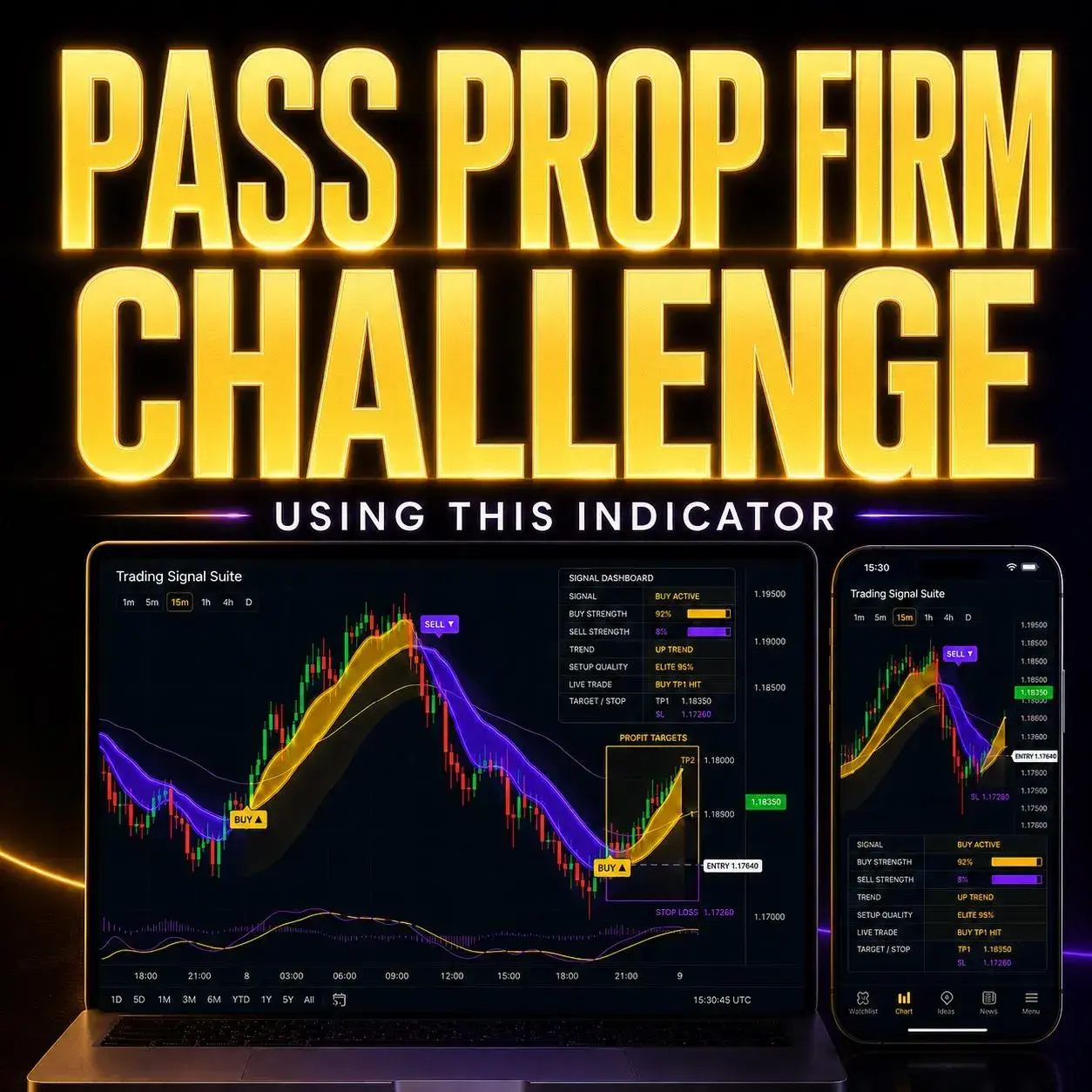
Trading Signal Suite for MT5: the chart information in one place
Trading Signal Suite is an MT5 prop firm challenge indicator to consider when you want a more organised signal chart. It brings Buy/Sell labels, trend direction, Buy/Sell strength, setup quality and Entry / TP / SL guide areas into one MetaTrader 5 display.
The attraction is easy to understand: open the chart and find the information around the setup without assembling it from several separate displays. You can inspect the direction being marked, the model’s context and the reference areas around price, then relate those observations to your own method and account requirements.
This guide focuses on that desktop workflow. It covers the MT5 version of Trading Signal Suite, installing the supplied file, confirming the chart you are studying, and checking available alerts. Those practical details matter when you move from a product preview to a terminal connected to your own account.
| Part of the display | Use it to identify | Keep in your review |
|---|---|---|
| Signal direction | The Buy or Sell setup marked by the software. | The chart symbol and time it appeared. |
| Trend & strength | The directional context and strength readings. | The values present when you first checked it. |
| Setup quality | How the model classifies that setup. | The reading as a model output, rather than a win rate. |
| Entry, TP1 / TP2 & SL | The relationship between the guide areas. | The quote and contract details in your terminal. |
| Live setup status | The state shown by the indicator. | Actual orders and account records separately. |
The table describes chart-analysis functions. Position sizing, challenge limits and account-level controls require their own checks.
Start with the view you want to improve
If a chart signal is easy to spot but its surrounding information takes longer to gather, inspect the complete Trading Signal Suite display. The demo below shows the feature layout; the installation section then takes you into the MT5 workflow.
See the Trading Signal Suite feature demonstration
Watch how the signal labels sit beside the trend and dashboard, then follow the entry reference and highlighted target/stop areas. This shared product demonstration is also used on the MT5 feature page; use the desktop setup instructions below for the MetaTrader version.
How to install Trading Signal Suite in MetaTrader 5
Use your desktop MT5 app, installed and logged in. The MT5 product is supplied as an .ex5 indicator file. Phone apps and the web terminal cannot install this file, so begin in the desktop application where you want the dashboard to run.
- Download the MT5 file from your access instructions.
Keep the supplied .ex5 file ready. Follow the current product instructions for access and any version-specific requirements.
- Open the data folder from the intended MT5 terminal.
Choose File → Open Data Folder, then open MQL5 → Indicators and copy the .ex5 file into that folder. Starting inside the app helps you use the correct location when more than one terminal is installed.
- Refresh the indicator list and open the chart.
Return to MT5. Refresh Indicators in Navigator, or close and reopen the same terminal if needed. Find Trading Signal Suite and drag it onto your chosen chart.
- Review the available settings.
Read the Inputs and product instructions before using the display. Confirm the symbol, chart period and settings you intend to observe, then check the dashboard has appeared.
For the product-specific guide, open the MetaTrader Trading Signal Suite user manual. MetaQuotes explains the platform’s data-folder structure and working with indicators in its official help.

If the file does not appear, first confirm that it is the MT5 .ex5 file and that you opened the data folder from the terminal you are now using. A second installation can have a different data folder.
Read direction, strength and quality before reviewing the price areas
The dashboard is useful when you can turn what it shows into a short, clear description. Begin with the current signal, add the displayed trend and strength, then locate the guide areas. That gives you a record you can understand later, instead of a screenshot whose meaning depends on remembering why you saved it.

Note the Buy or Sell reading and the chart candle associated with the observation.
Read trend direction, Buy/Sell strength and setup quality as the model’s accompanying information.
Locate Entry, SL, TP1 and TP2, then check how they sit around the current quote.
Make the chart record identifiable
Include the account or terminal you are reviewing, the complete symbol name and the chart period. A market name alone can be too vague when several terminals or symbol variants are open.
Keep the score in perspective
A strength percentage or setup-quality grade summarises the software’s calculations. It does not establish a separately verified success probability, and it cannot tell you whether more account exposure is appropriate.
Reading several fields together can help you understand the product’s interpretation. Those fields still come from the same indicator, so matching colours or values are not automatically independent confirmation of a profitable trade.
The live setup-status field belongs to the chart model too. An actual position, its filled price and its result belong to the account’s trading records. Keeping both records lets you compare what the display showed with what, if anything, was executed.
Review Entry, TP1, TP2 and SL on the MT5 chart
The Entry / Take Profit / Stop Loss layout makes the distances in a setup easier to inspect. Trading Signal Suite displays TP1 and TP2 planning zones with the entry and stop references, so you can read the outline of the idea before doing any separate account calculations.

Read the numbers from the chart you are actually using. Then check the relevant symbol specification and current quote in your terminal. Price distance alone does not give a cash risk amount: the contract, tick value, volume and any execution costs also matter.
A simple way to understand the displayed distances
For this invented Sell example, the reference stop is 3 units above entry. The first target is 3 units below entry and the second is 6 units below it. That is a nominal 1R and 2R layout before costs, using the entry-to-stop distance as 1R. These figures explain the relationships; they are not recommended MT5 settings or a claim about available Trading Signal Suite setups.
A different fill changes the arithmetic. The displayed guide is a reference, while a real order has its own price and execution conditions. Use the quote available when you review the setup rather than assuming the entry shown earlier is still obtainable.
Save the first observation as well as the later chart
Capture the original guide areas, symbol, chart period and time. If the chart later shows a target reached or a changed status, keep that later image beside the first one.
This helps you study the indicator’s behaviour through time without treating a completed historical picture as a record of your own fills. The shared mobile artwork illustrates the feature layout; the MT5 custom indicator itself runs on desktop.

Build an MT5 routine you can repeat during an evaluation
A useful review has an identifiable starting point. Before reading a new setup, confirm the terminal, account and symbol in front of you. Then review the indicator’s output alongside the account requirements you have already documented.
Identify the workspace
Check the account connection, full market symbol, chart timeframe and indicator inputs. Keep this context with the saved chart.
The same familiar chart colour does not identify the account behind it.
Describe the setup
Write down the signal direction, context fields and Entry / TP / SL references, with the time and current quote.
A consistent description is easier to review than a remembered impression.
Check the account requirements
Review current exposure, the applicable limits and any session or activity restrictions using your firm’s own records.
The software’s setup grade does not replace the account check.
The indicator is ready, but on the wrong account’s chart
You have a practice terminal and an evaluation terminal open. The same instrument appears in both, but the account context differs. Confirm which terminal produced the observation before saving it in your review. Installing the file successfully does not identify the account you meant to study.
The candle time is not the rulebook’s reset instruction
You record a signal using the chart’s displayed time. When checking an evaluation requirement, also record the timezone or reset definition stated by the firm. Do not infer an account-rule boundary from the appearance of a new chart day alone.
These situations are about keeping the record accurate, not selecting a particular trade. A skipped setup can be as useful to the review as one you acted on, especially when the reason was a separate account requirement rather than a change in the indicator.
Check the current terms for your exact programme. FTMO’s official strategy guidance, for example, subjects strategy use to its conditions and prohibited practices. A third-party indicator description does not establish approval by a prop firm or permission for every possible use.
MT5 alerts: desktop operation and supported mobile push
Trading Signal Suite’s MT5 signals are generated in the desktop terminal. Enable the alert options available in your version and keep MT5 running with the indicator attached and the connection working. Closing the application stops that local indicator from continuing to calculate new setups.
- Review the product’s alert inputs.
Open the indicator settings and use the alert controls actually supplied. Check which event and delivery methods your installed version supports.
- Configure push only if the indicator supports it.
For supported mobile delivery, open Tools → Options → Notifications in desktop MT5. Enable push and enter the MetaQuotes ID from the mobile app.
- Check delivery and the signal source separately.
Use the Notifications Test button to check the phone delivery route. A successful test does not establish that the indicator’s own signal push is enabled or supported.
- Keep the desktop workspace active.
Leave the terminal and relevant chart running, allow for internet and power interruptions, and verify the setup again after restarting or changing the chart configuration.

MetaQuotes’ notification documentation describes platform configuration. Broker-server trade notifications are a separate mechanism from a custom indicator’s locally generated alerts. Receiving an account-operation message while the desktop is closed does not show that Trading Signal Suite is still calculating.
The MT5 phone app can receive supported push messages; it cannot install and display this custom .ex5 indicator. A message also remains separate from placing, modifying or closing an order.
When is the MT5 version worth exploring?
Trading Signal Suite is a natural product to inspect when MetaTrader 5 is already where you study your markets and you want the signal context easier to locate. The feature proposition is one organised view of direction, strength, quality and the entry, target and stop references.
You want the references beside the MT5 chart
The indicator may fit a process that repeatedly moves from a signal to checking its surrounding areas. Watch the product layout and decide whether those fields make your own review more readable.
You are comfortable using the desktop terminal
The MT5 file is installed and configured in the desktop app. Factor that operating requirement into your choice, including keeping the chart active for indicator-generated updates.

The MT5 product page describes forex, Gold, crypto, indices, stocks and other markets, with use across chart periods. Start with the instrument available in your terminal and understand its data and contract specification. The fact that an indicator can be applied to a market does not establish how well a chosen method performs there.
This is chart-analysis software. An account monitor, automatic position-size tool or loss-limit lockout is a different function to establish separately. Buying a clear signal display is a decision about the features you want to use, not evidence of a funded-account outcome.
If you want to compare several chart roles first, see our MT5 prop firm indicator comparison. For an intraday focus, explore the MT5 scalping and day-trading guide, or browse all VIP Algos MetaTrader 5 indicators.
An eight-point MT5 Trading Signal Suite preparation checklist
Work through the list when setting up the desktop indicator and preparing a chart review. It keeps the file, terminal, chart context and separate account checks together. Reset it when you want to repeat the preparation.
Eight checks for the MT5 workspace
Completing these checks documents preparation; it does not validate a trading edge or predict whether an evaluation will be passed.
MT5 prop firm challenge indicator FAQs
What does Trading Signal Suite add to an MT5 challenge chart?
It groups Buy/Sell chart signals with trend, Buy/Sell strength, setup quality and Entry / Take Profit / Stop Loss areas. The benefit to inspect is having those references available together. Its live setup-status reading is part of the chart display, while actual positions and challenge requirements need separate review.
Is this an MT5 indicator or an automatic challenge-passing robot?
The MT5 version is supplied as a custom indicator for chart analysis. Its Buy/Sell labels and target/stop areas are software-generated references. They do not constitute automatic account management, accepted broker orders or a service that completes an evaluation for you.
Where do I put the .ex5 file in MetaTrader 5?
From the desktop terminal you intend to use, choose File → Open Data Folder. Copy the supplied .ex5 file into MQL5 → Indicators, refresh the Navigator list and attach Trading Signal Suite to the desired chart. Check the current product installation instructions for any additional requirements.
Can I run Trading Signal Suite on the MT5 phone app or web terminal?
This custom indicator file runs in desktop MT5. The phone app and web terminal do not install the supplied .ex5 file. If the indicator supports mobile push, the phone may receive those messages after the required notification setup; that does not put the custom dashboard on the mobile chart.
Do MT5 signal alerts work after I close the desktop application?
Locally calculated indicator alerts require the terminal and indicator to remain running. Check the connection and the alert inputs available in your version. Broker-server account notifications are different from the custom indicator’s signal calculations, so receiving one type of message does not prove the other is operating.
Does a high setup-quality score mean a high chance of passing?
A quality score is a reading produced by the model. This guide does not establish it as a verified win probability or challenge-pass rate. Interpret the fields as chart information, and assess your method and account decisions using your own records rather than a score alone.
Can it keep my daily loss or total drawdown within the firm’s limits?
The chart functions described here do not enforce account-level loss limits. Monitor the relevant rules, current account position and exposure through the appropriate account records and controls. A stop area drawn by an indicator does not guarantee execution there or prevent an account-rule breach.
Can I use the MT5 version on forex, Gold and indices?
The product describes use across these and other supported markets. Check the actual symbol offered in your terminal, its price data, contract specification and chosen chart settings. Review the specific programme’s rules as well. Availability on an MT5 chart does not establish identical behaviour or results across instruments.
Are the signals fixed permanently or can the chart change?
No blanket non-repainting property is established here. Observe the installed version and settings as bars develop, close and reload. Preserve the original signal time and guide areas, then compare the later display. A finished historical chart by itself does not show when every reading first became available.
How do I buy and set up Trading Signal Suite for MT5?
The Trading Signal Suite MT5 page provides the current offer and access information. It describes one-time product access and an email with installation instructions. Use the MT5 file in desktop MetaTrader 5, then review its chart settings and supported alerts before relying on the workflow.
Bring the signal and its price references onto one MT5 chart
Explore Trading Signal Suite if the next improvement you want is a clearer desktop review. Compare the dashboard, study the Entry / TP / SL layout and check the MT5 installation requirements. Choose it for the chart function you understand and want to use.
Find current product access and support on the MT5 page, or return to the desktop setup steps.
MT5 product information and supporting references
Features, shared product illustrations and the demonstration are drawn from the Trading Signal Suite MT5 page. The MetaTrader user guide is linked for current product instructions. MetaQuotes documents file locations, working with indicators and platform notification settings. FTMO’s strategy guidance illustrates the need to read account-specific conditions; no approval or affiliation is implied.

VIP Algos develops trading indicators and educational resources. Our team wrote this guide to explain the MT5 Trading Signal Suite feature display, desktop setup and review process. For product access or installation help, contact VIP Algos.